

BrickSuite
Software
A desktop LEGO workshop: organize parts and storage, plan builds, and prepare supported geometry for 3D printing.
From the box of loose pieces to your next finished build.
A workshop you can find your way around
BrickSuite is a free, open-source desktop application for LEGO hobbyists who want to know what they own, where it lives, and what they can build with it. Catalog loose parts, map your drawers and boxes, and turn available stock into a plan for a set or your own creation.
Keep loose inventory, ongoing builds, and finished models connected without losing their history. Explore visual part references, identify missing pieces, and prepare supported part geometry for 3D printing from the same application.
Key Features
Inventory & Storage
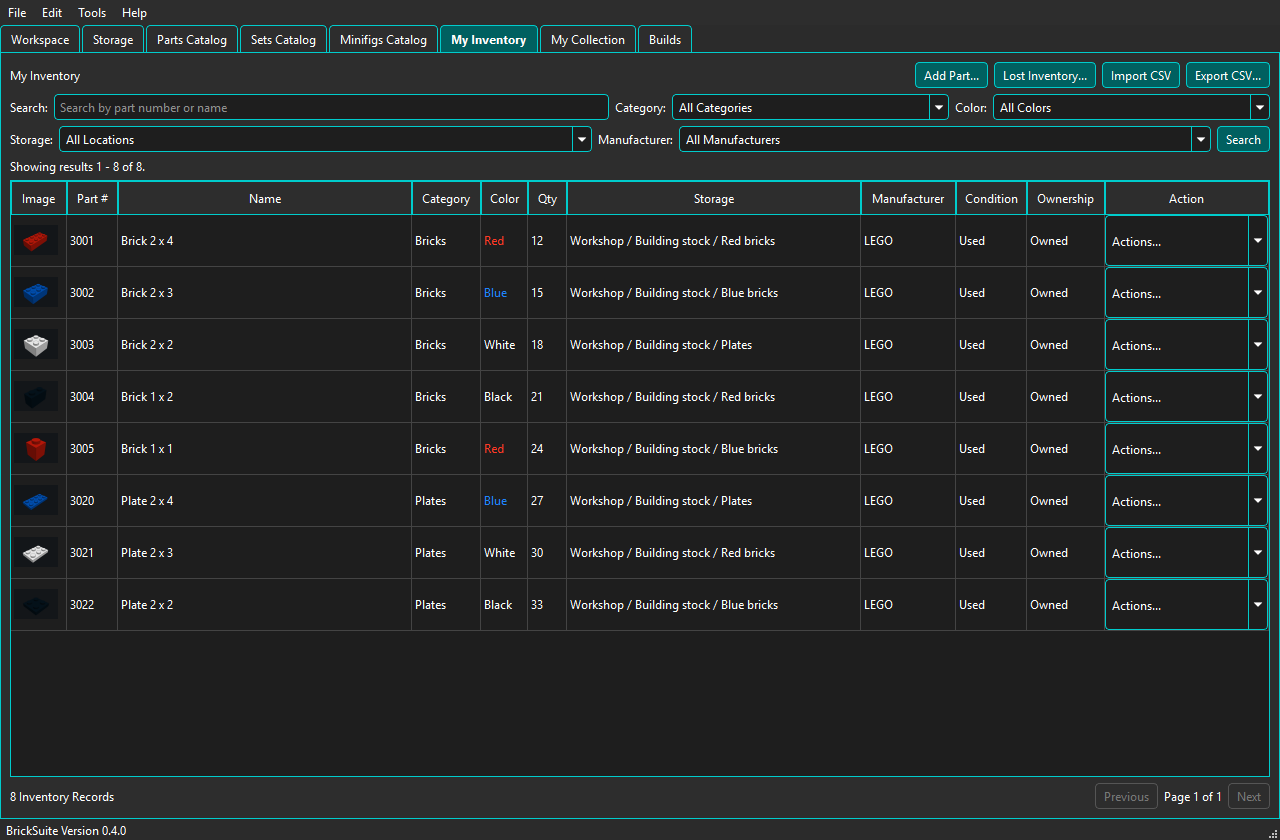
Track part, color, quantity, condition, and location. Record moves and Lost/Found activity so your digital inventory stays connected to the workshop.
Catalogs & Part Reference
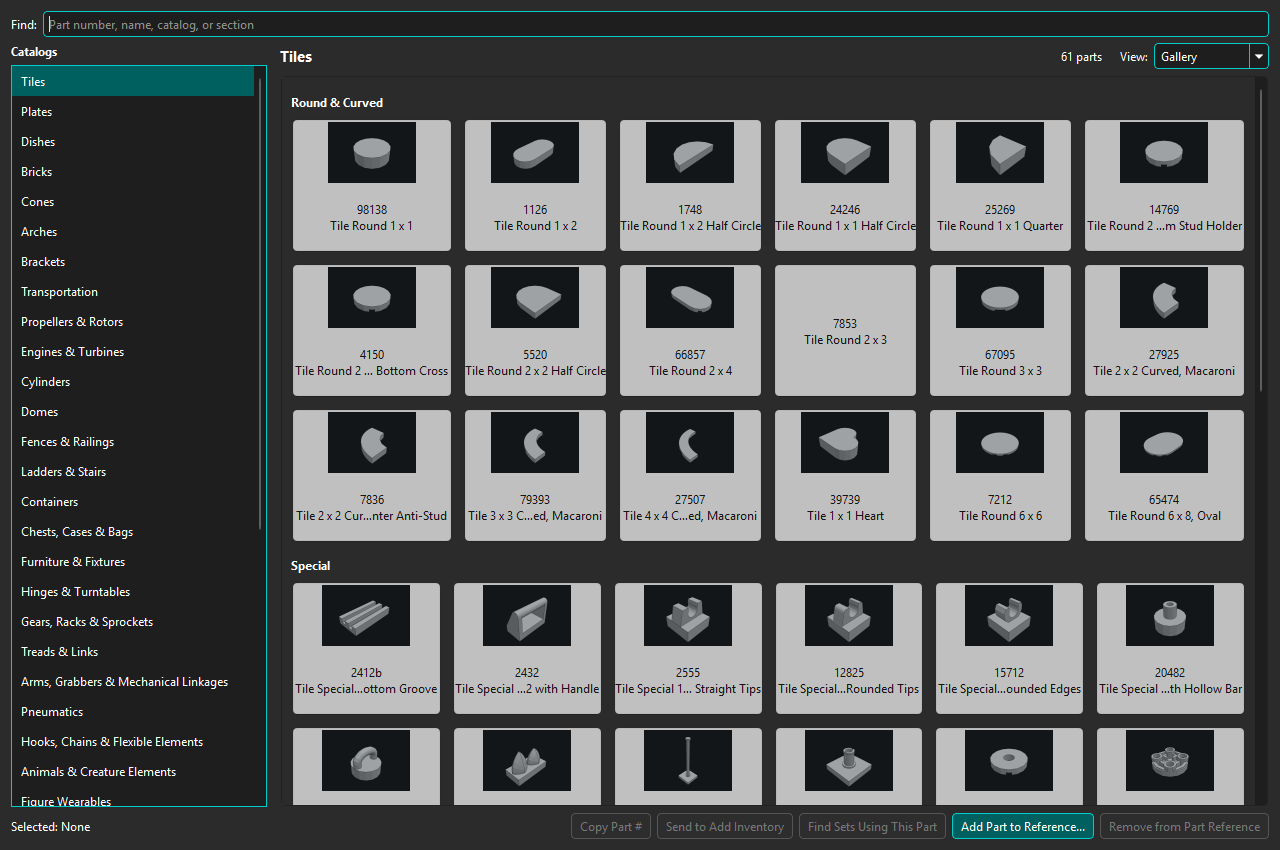
Browse Parts, Sets, and Minifigs. Identify loose pieces visually by family or supported dimension grids, then send a selection to Add Inventory.
Build From Stock
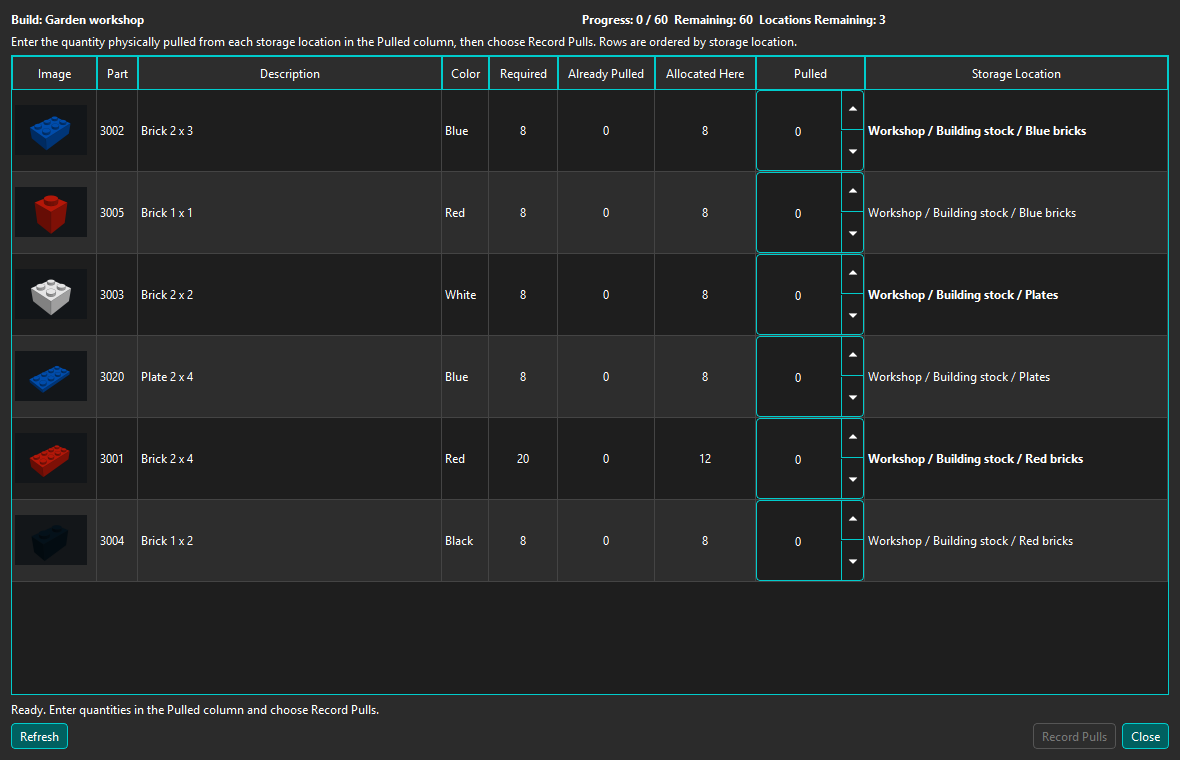
Allocate owned pieces to specific requirements, make deliberate substitutions, and pull parts by storage location.
What Can I Build?
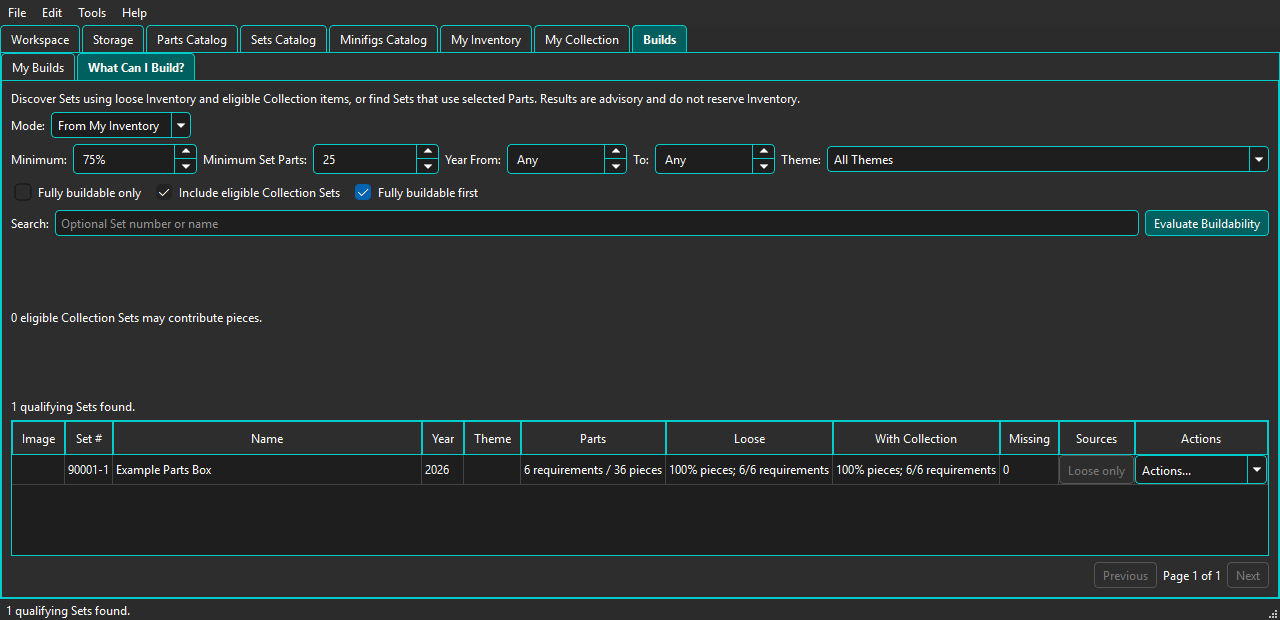
Compare catalog sets with available stock, review buildability, or find sets that use selected parts. Results help you plan; they do not reserve inventory.
Missing Parts & Procurement
Review shortages before committing to a build and export supported procurement formats, including Rebrickable CSV.
My Collection
Keep individual physical sets, minifigs, and custom models with their own condition, completeness, location, and notes.
Prepare for Printing & LEGO Fit
Inspect supported 3D models, prepare nominal printable geometry, and use compatible verified calibration evidence for supported fit corrections.
Backup & Recovery
Create manual database backups, enable verified automatic backups with retention, and inspect database integrity.
Optional Host & Remote
Pair trusted BrickSuite clients with a workshop Host for supported shared inventory and build workflows. Imports and database administration remain Host-only.
From catalog to storage to build
- Identify the part. Import reference catalogs or use Part Reference to recognize a loose piece.
- Give it a home. Model shelves, boxes, and drawers; choose an active end location for your inventory.
- Record what you own. Add the actual quantity, color, condition, and location in My Inventory.
- Plan a build. Use set, minifig, or custom requirements and allocate available stock.
- Pull and finish. Follow storage locations, record the pieces physically pulled, and review shortages before completing the build.
My Collection keeps finished physical models distinct from loose pieces. A complete set you already own is not treated as though you assembled it from your loose inventory.
Find a build, then find its pieces
What Can I Build? compares requirements with available stock and, when selected, eligible collection items. Explore promising sets or start with particular parts you want to use. The comparison is advisory until you create and allocate a build.
Within a build, allocations stay tied to the requirement they fulfill. Interactive pulling groups pieces by storage location; Missing Parts shows what you still need. Supported procurement exports help you take a shortage list to the next step.
Part Reference: recognize it before you file it
Keep the visual reference open while you work. Browse families of shapes, use dimension grids where available, copy a part number, send a part to Add Inventory, or find sets that use it.
3D Printing: prepare, inspect, export
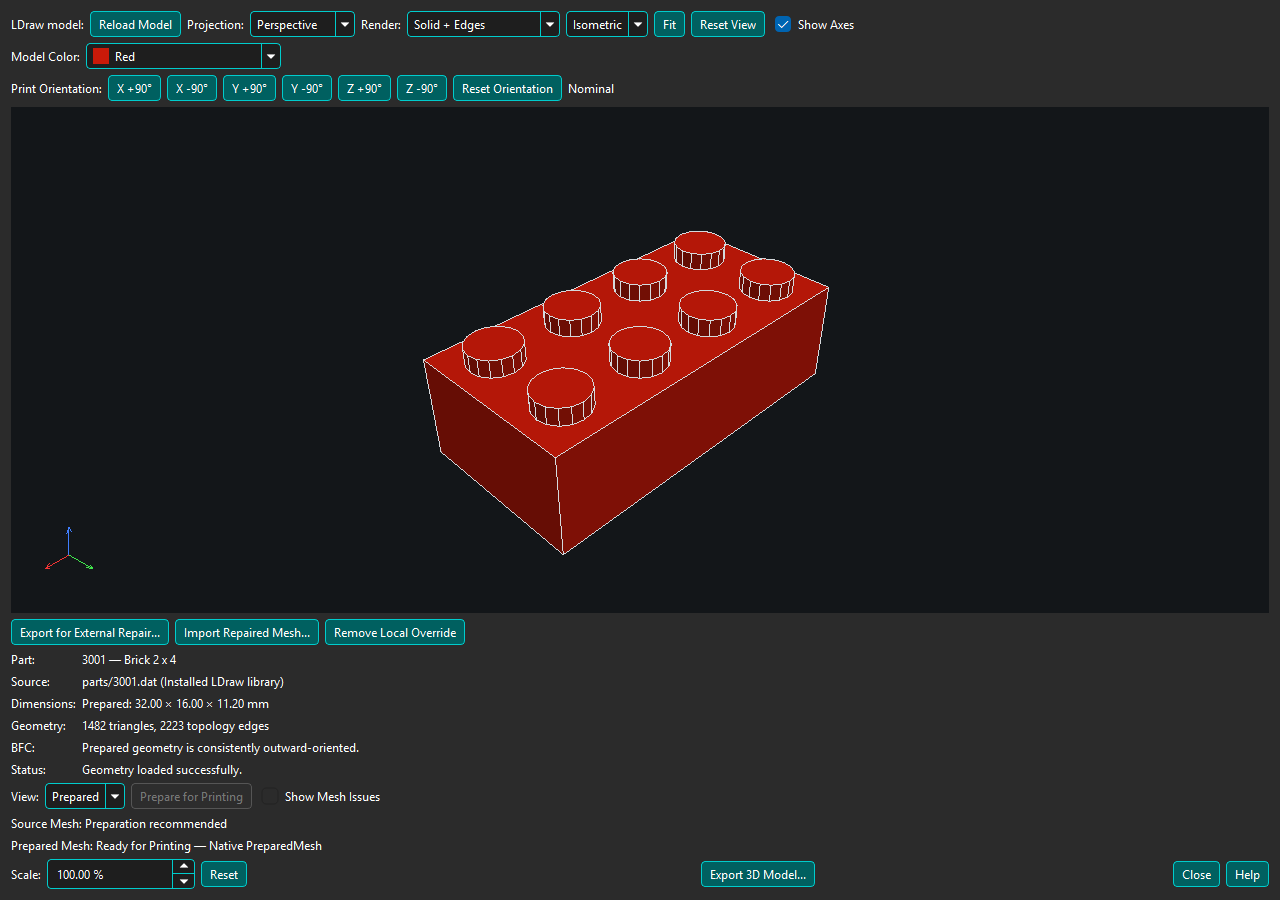
Open installed LDraw models or local LDraw files and inspect their geometry. Prepare for Printing builds a closed, consistently oriented nominal mesh where BrickSuite can determine a safe result, without modifying the source model. Export supported output as STL, OBJ, or 3MF with the selected scale and orientation.
If native preparation cannot produce a safe result, the external-repair workflow can validate a repaired mesh as a local printable override. A repaired model does not automatically gain verified fit corrections.
LEGO Fit: calibrate against physical parts
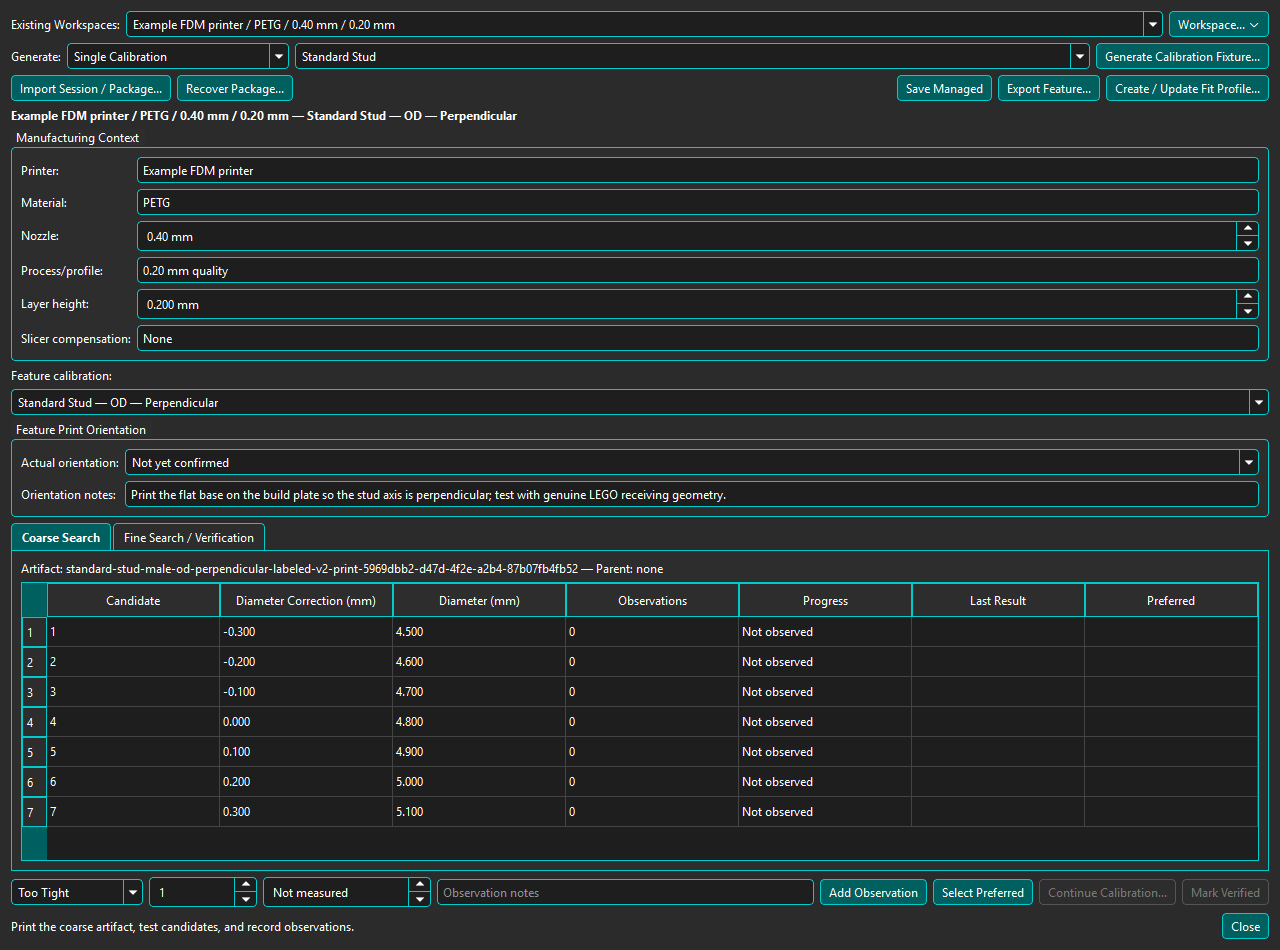
Generate calibration fixtures for supported fit families, print them using your chosen printer and material, and record repeated physical observations. Explicitly verified evidence can become a compatible Fit Profile.
BrickSuite applies supported corrections only where the geometry, printing process, and orientation match the verified evidence. Coverage may be partial; unsupported features remain nominal. This connects fit adjustments to measured results rather than simply scaling an entire mesh.
Prepare for Printing guide (opens in a new tab) · LEGO Fit Calibration guide (opens in a new tab)
Technology & Platforms
BrickSuite uses Qt/C++ for its desktop interface and SQLite for local data. Many catalog and workshop workflows work offline once the relevant data is imported. Optional Rebrickable and Brickset integrations supply catalog data, set details, and instructions; API features use your own credentials.
- Windows x64: installer; the primary validated platform.
- Linux x86_64: Ubuntu 22.04 LTS / glibc 2.35 release baseline; the installer supports Ubuntu 22.04 or newer.
- macOS Apple Silicon: macOS 13 or newer; physical Mac mini runtime acceptance recorded.
- macOS Intel: macOS 13 or newer; CI-validated builds, with manual Intel runtime acceptance still pending.
macOS packages are ad-hoc signed and not Apple notarized. Follow the release installation instructions for first launch. Published packages do not imply support for every Linux distribution or testing on every OS version.
Make more of your collection
- Sort a mixed box of loose pieces and record which drawer holds each part.
- Choose a build that uses stock you already own, then pull its pieces location by location.
- Review a shortage list before sourcing missing parts.
- Keep a record of finished sets and custom builds, separate from loose inventory.
- Prepare supported part geometry and calibrate printed fit for your own printing setup.
Development Status
BrickSuite is actively developed. Version 0.4.0, released October 7, 2026, provides Windows x64, Linux x86_64, and both macOS architectures. The user guide documents current workflows and their limits.
Printing support is model- and feature-specific. Experimental Auto Fit for externally repaired meshes does not currently produce transformed output; native supported geometry and compatible verified profiles have their own documented workflow. See release notes for changes before upgrading, and keep a database backup.
Downloads, User Guide & Source
Use Download BrickSuite for RF StateSide's platform-selection experience. While the BrickSuite download entry is being prepared, this action opens the Downloads index; the published packages are also available through GitHub Releases.
The online User Guide (opens in a new tab) is the same help available inside the application. GitHub hosts public source, issues, contribution history, and releases for developers and anyone who wants to explore further.
BrickSuite is licensed under LGPL-3.0-only. Consult its license and third-party notices for the full terms.
Inside BrickSuite
Authentic v0.4.0 User Guide screenshots with example workshop data. Select an image to inspect it at full size.
Help shape BrickSuite
Share workshop feedback, ask a general question, or discuss a collaboration. For reproducible software bugs and feature requests, use GitHub Issues and include the application version.
LEGO® is a trademark of the LEGO Group, which does not sponsor, authorize, or endorse BrickSuite.